
Short version: 2 ways to use speak to text in Windows
There are multiple options for you if you want to use voice recognition in your Windows computer.
This older guide is best for setup basics. If you are choosing a daily Windows dictation app for work, start with the dedicated Windows speech-to-text guide. If you are comparing Windows tools against broader professional options, use the dictation software buyer guide.
Option 1: Windows built-in speech-to-text
Benefits:
✅ Included with Windows
✅ Works in many text fields
Drawbacks:
❌ Slow
❌ Inaccurate at times
❌ Requires voice commands for punctuation
Option 2: Speech-to-Text Apps
Lots of choices for dedicated voice recognition apps for Windows, but these are the general benefits.
Benefits:
✅ Work in most apps
✅ Highly accurate
✅ Automatic grammar and punctuation correction
✅ AI commands and shortcuts
Drawbacks:
❌ Some dedicated tools cost money, but Voicy has a free trial plus plans at $8.49/month, $82/year, or $260 lifetime
How to use Speech-to-Text in Windows
Do you wish your computer could understand what you're saying? Windows speech-to-text makes this dream a reality.
This amazing feature turns your spoken words into written text. It's perfect for people who want to work faster and smarter.
Speech-to-text helps everyone. Whether you type reports or send emails, it saves time and energy. It also helps prevent hand pain like carpal tunnel syndrome. You can learn more about carpal tunnel relief here.
People who have trouble typing love this feature. Busy workers use it to multitask better.
Imagine talking while your computer types for you. You can focus on your ideas instead of worrying about typing. This makes work easier and helps everyone communicate better.
Let's explore how to use Windows speech-to-text like a pro!
In this article we will go through the basic setup of Windows and at the bottom we will mention some great options for 3rd party apps.
Getting Started with Windows Speech-to-Text
Setting up speech-to-text on Windows is easier than you think. Follow these simple steps.
Step 1: Turn On Speech Recognition
First, you need to enable online speech recognition.
Click the Start button
Go to "Settings"
Click "Privacy"
Find "Speech" in the menu
Turn on "Online speech recognition"
This step is very important. Without it, speech-to-text won't work properly.
Step 2: Set Up Your Microphone
A good microphone setup makes all the difference.
Go to "Settings"
Click "System"
Choose "Sound"
Look for "Input" section
Check your microphone connection
Click "Device Properties"
Follow the setup instructions
Take time to set up your microphone correctly. This helps Windows understand your voice better.
Step 3: Start Using Speech-to-Text
Ready to try it? Here's how to start:
Press Windows key + H together
A small toolbar will appear
Start talking!
That's it! Your computer is now ready to type what you say.
Practice makes perfect. Don't worry if it feels strange at first. You'll get better with time.
Using Windows Dictation Like a Pro
Windows dictation can change how you write documents and emails. Here's how to use it well.
Starting Dictation
Press Windows key + H to open the dictation toolbar. You'll see a small box appear on your screen. This means Windows is listening and ready to type.
This feature is great for:
Writing long emails quickly
Capturing ideas fast
Creating documents without typing
Adding Punctuation
Windows dictation lets you add punctuation by speaking it out loud.
Say these words to add punctuation:
"Period" adds a full stop (.)
"Comma" adds a comma (,)
"Question mark" adds (?)
"Exclamation point" adds (!)
This keeps your writing clear and easy to read.
Formatting Your Text
You can also format text with voice commands:
Say "new line" to start a new paragraph
Say "new paragraph" for extra spacing
Say "all caps" to make text UPPERCASE
Want to learn more commands? Check out Microsoft's complete list of speech commands.
Keep practicing these commands. Soon, dictation will feel natural and save you tons of time.
Mastering Windows Speech Recognition
Windows Speech Recognition goes beyond simple dictation. You can control your entire computer with your voice.
Setting Up Speech Recognition
Here's how to get started:
Click the Start button
Search for "Windows Speech Recognition"
Click on it when it appears
Follow the setup wizard
Let it configure your microphone
Adjust speech settings as needed
Good microphone setup is crucial here. Take your time with this step.
Training Your Computer
Your computer needs to learn your voice. This process is called training.
The training involves:
Reading sentences out loud
Helping Windows learn your accent
Teaching it how you pronounce words
The more you train, the better it gets. This makes speech-to-text much more accurate.
Using Voice Commands
Once set up, you can control almost everything with your voice:
Open programs
Browse the internet
Navigate menus
Click buttons
For a complete guide, visit Microsoft's voice recognition help page.
Practice Makes Perfect
Learning Speech Recognition takes time. Start with simple tasks like:
Opening your web browser
Checking email
Playing music
Then move to harder tasks as you get comfortable.
Be patient with yourself. It takes time for you and the software to work well together.
Tips to Make Speech-to-Text More Accurate
Want better results from Windows speech-to-text? These tips will help a lot.
Fix Your Microphone Position
Where you put your microphone matters:
Keep it close to your mouth
Don't put it directly in front of your mouth
Avoid picking up breathing sounds
Use a headset microphone if possible
Good microphone placement makes a huge difference in accuracy.
Speak Clearly and Slowly
How you talk affects how well it works:
Speak at a steady pace
Say each word clearly
Don't rush through sentences
Take breaks between thoughts
Clear speech helps the computer understand you better.
Use Training Features
Spend time training Windows to understand your voice:
Read the provided sentences
Do this regularly, not just once
Train in a quiet room
Speak naturally during training
For more detailed tips, check out this guide on improving speech recognition.
Create a Good Environment
Your surroundings matter:
Use a quiet room
Turn off background music
Close noisy windows
Tell others you're using voice typing
A quiet space helps Windows focus on your voice.
Make these tips part of your routine. You'll see much better results with consistent practice.
Alternative Tools for Speak to Text
Exploring alternative tools for speak to text windows can greatly enhance your experience, offering tailored features for different needs. Let’s delve into some options that can elevate your speech-to-text endeavors.
1. Dragon NaturallySpeaking
Dragon NaturallySpeaking is a powerhouse in the speak to text windows realm. Known for its high accuracy, Dragon offers specialized vocabularies and customizable commands. It’s perfect for professionals who require precision and efficiency. You can dictate documents, control applications, and even surf the web - all hands-free. The learning curve might be steep, but the payoff in productivity is worth it.

2. Voicy Speech-to-text for Windows
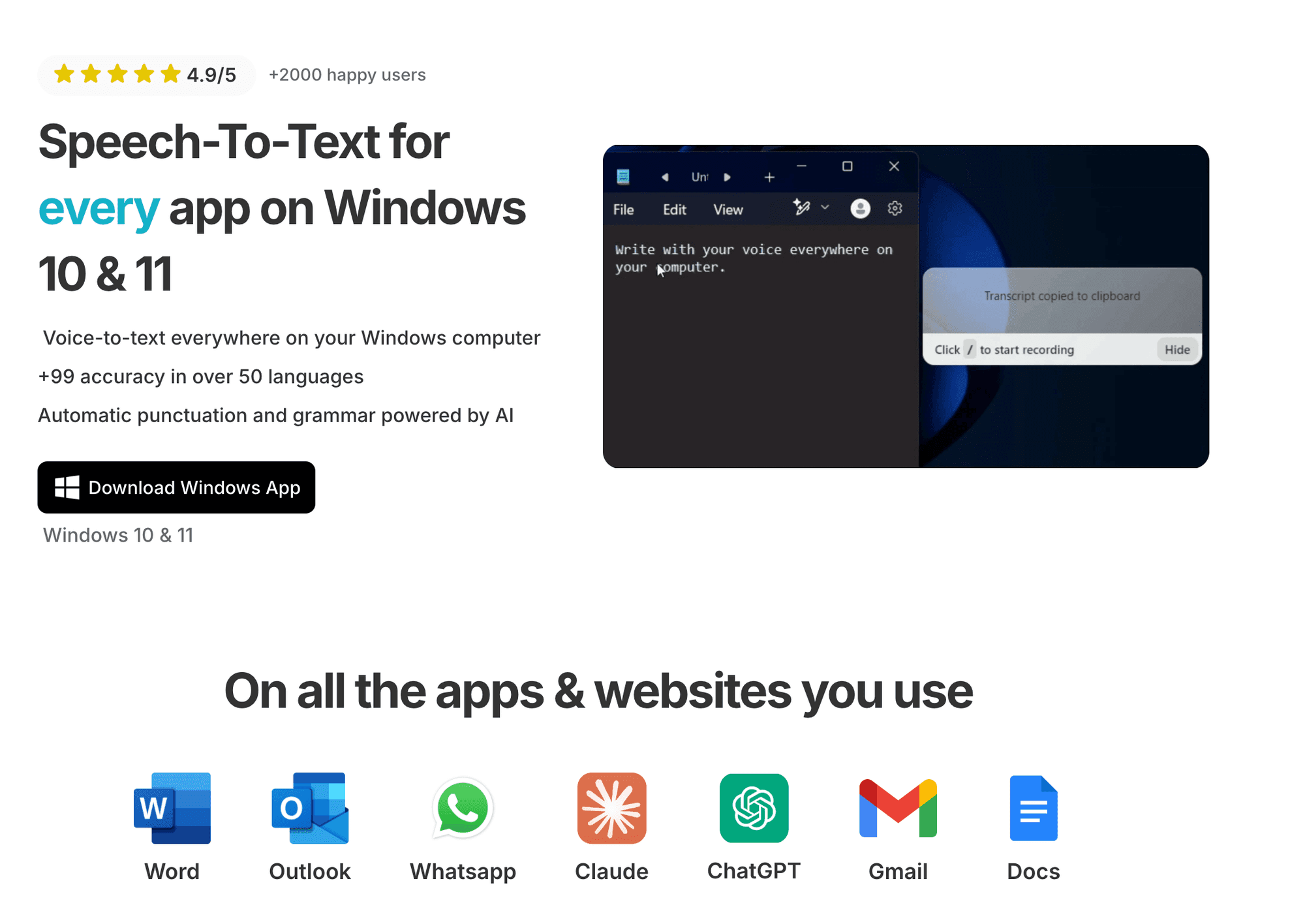
Voicy is the dedicated choice for people who write on Windows every day. It works on Windows, Mac, browser extension, iOS, and Android, supports live dictation plus file upload transcription, and uses cloud-based AI for high accuracy, punctuation, and cleaner first drafts. Voicy has a free trial, then paid plans at $8.49/month, $82/year, or $260 lifetime.
3. Google Speech-to-Text
Google Speech-to-Text integrates seamlessly with Windows, making it a reliable choice. Its standout feature is handling multiple languages, perfect for multilingual users. It uses Google’s AI to continually improve accuracy. Whether you’re drafting documents or transcribing meetings, this tool’s integration with other Google services is a major plus.
4. Mozilla DeepSpeech
Mozilla DeepSpeech is an open-source option, ideal for tech enthusiasts who enjoy customization. Supported by a thriving community, it offers flexibility for those willing to tinker. While it requires some setup, DeepSpeech provides a unique opportunity to tailor your speak to text windows experience to your specific needs.
Exploring these alternatives allows you to find the perfect fit for your workflow, enhancing how you use speak to text windows.
Addressing Common Issues and Troubleshooting
Encountering hiccups with speak to text windows? You're not alone, and thankfully, most issues have simple fixes. Let's look at some common problems and how you can troubleshoot them effectively.
1. Connectivity IssuesPoor internet connection can disrupt your speak to text windows experience. Ensure your Wi-Fi is stable. If issues persist, try restarting your router. Sometimes, switching to a wired connection can improve performance.
2. Recognition ErrorsIf your system misinterprets words, it might be due to background noise. Position your microphone correctly and ensure a quiet environment. Also, check your microphone settings in the Windows control panel to guarantee it's set as the default device.
3. Software ConflictsConflicts with other software can cause speak to text windows to act up. Ensure all software is updated, especially Windows and any involved applications. If problems continue, consider running Windows Troubleshooter to identify and resolve software conflicts.
By following these tips, you can enhance your speak to text windows experience, ensuring it runs smoothly and efficiently. Remember, a little tweak here and there can make a big difference!
Start Using Speech-to-Text Today
Windows speech-to-text can change how you work. It makes writing emails and documents much easier and faster.
We've shown you how to:
Set up Windows speech-to-text
Use dictation effectively
Make it more accurate
Fix common problems
Choose alternative tools
But why stop with basic Windows features?
Voicy takes speech-to-text to the next level. It works across all your favorite programs with over 99% accuracy. Plus, it has AI features that make writing even easier.
Ready to transform how you work? Start with the Windows speech-to-text guide if you want the dedicated Voicy setup, or compare broader options in the dictation software buyer guide. Voicy has a free trial, but it is not a fully free tool.